

When a client asks for a map in their design project, you may be tempted to do what's quickest: screenshot Google Maps, drop it in and move on. It looks fine on screen, right?
Then the print proof comes back: the roads are blurry, the text is soft, and there's no clean way to fix it. The problem isn't the resolution – it's the file type. And the solution is a vector map.
Raster maps don't work for print
Most maps available online – Google Maps, Apple Maps, any screenshot – are raster images. As any designer knows, raster files are resolution-dependent, which makes them a poor fit for print work from the start. Scale one up for a large-format layout and the quality falls apart fast. And unlike a photograph, where you might get away with a slight resolution compromise, a map relies on sharp lines and legible text. There's no hiding it.
What a vector map actually gives you
Instead of pixels, a vector map stores geographic data as mathematical paths and shapes. It's commonly formatted as SVG (which stands for Scalable Vector Graphic), and unlike a raster image (JPG or PNG), an SVG file can be scaled to any size without losing quality. This makes it ideal for print, large-format signage, laser cutting, and anything where resolution matters.
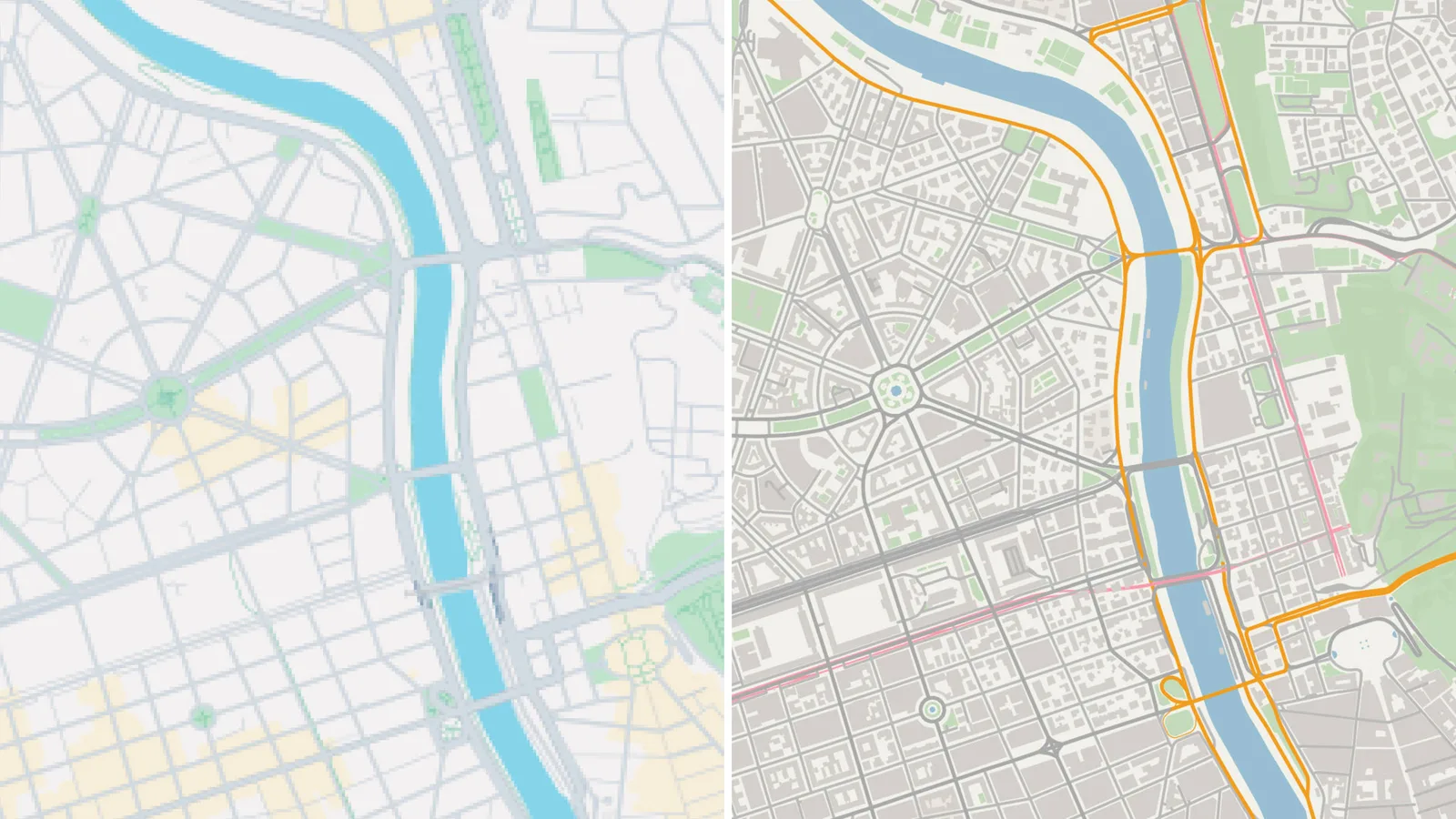
Roads can be restyled, water recoloured, and unnecessary layers switched off. For print production, large-format output, laser cutting, or any work that requires clean and scalable artwork, vector is the only format that makes sense.
The difference in a well-structured vector map is immediately obvious: named layers for roads, water, green space, and buildings – ready to work with, not untangle. The map-to-vector tool MapVG is built specifically to produce this kind of output.
The catch with most vector map sources
Knowing that Google Maps won’t cut it, and actually finding a usable vector map, are two different problems. Stock libraries rarely carry maps beyond major world cities. Mapping platforms export raster images, or SVGs so poorly structured they're nearly unusable in Illustrator. Specialist tools exist but tend to be complex, slow, and expensive.
Another tempting shortcut is Illustrator's Image Trace to vectorise maps. But it generally performs poorly with intricate detail – the output is imprecise, paths are fragmented, and roads are converted to filled shapes rather than editable strokes. For a file type where accuracy is non-negotiable, it rarely clears the bar.
This is why so many designers end up tracing maps by hand. Slow and imprecise, but at least the result is a file you control.
Easily export vector maps with MapVG
MapVG is a browser-based tool that generates clean, layered SVG maps of any location on Earth – designed specifically for designers, makers, and fabricators of maps.
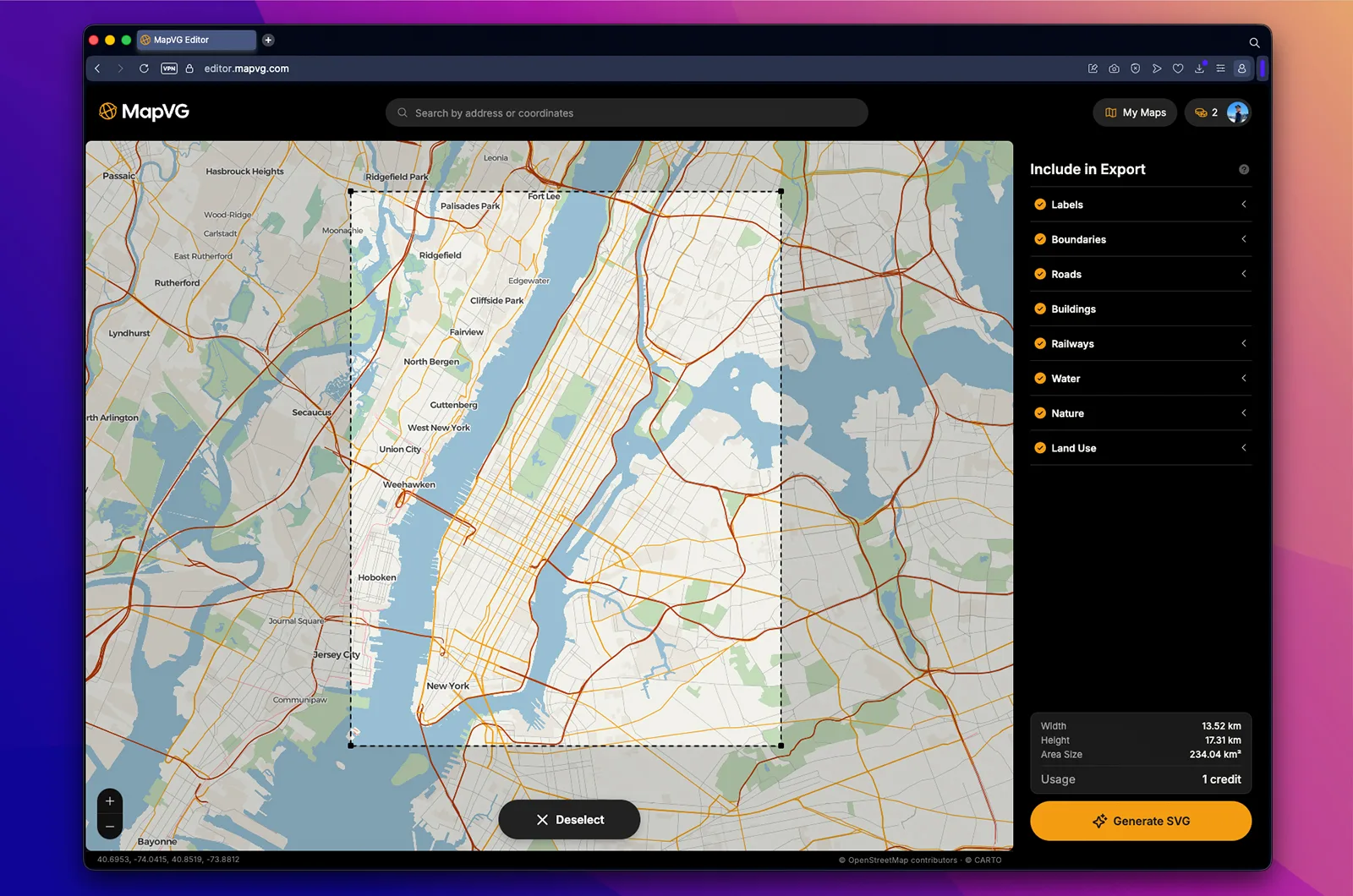
Search for a location, draw a bounding box, choose your layers, and export. In seconds you have a production-ready SVG with named Illustrator sublayers, properly closed shapes, and roads exported as strokes rather than outlines. No cleanup required.
Areas up to 1 km² are free to export, with no credit card needed, and a commercial use license is included by default.
So, the next time you need a quality map for a design project, don't settle for pixelated screenshots, and instead export a production-ready vector map file from the MapVG editor.